
Description
Truncates a number to a certain number of significant digits by dropping less significant digits.
Sample Usage
TRUNC(3.141592654,2)
TRUNC(A1,0)
TRUNC(1.23)
Syntax
TRUNC(value, [places])
-
value- The value to be truncated. -
places- [ OPTIONAL -0by default ] - The number of significant digits retained to the right of the decimal point.-
If
placesis greater than the number of significant digits invalue, the value is unchanged. -
If placesis negative, all digits to the right of the decimal place are discarded, and the specified number of digits to the left of the decimal place are changed to zero. If the result of TRUNC is zero, TRUNC will display 0.
-
Notes
-
The result of TRUNC is not rounded up or down.
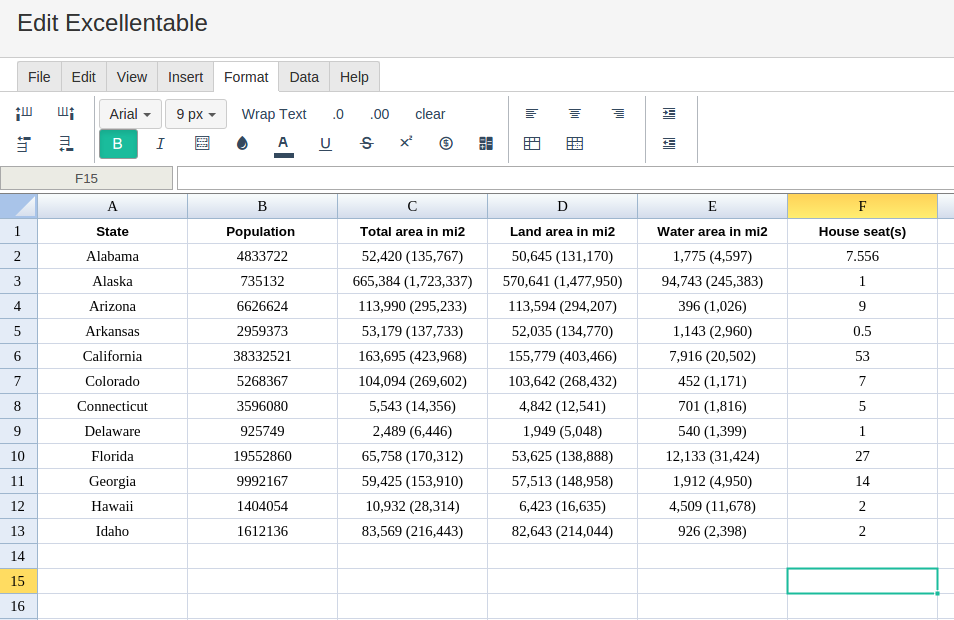
To use the TRUNC Formula, simply begin with your edited Excellentable:
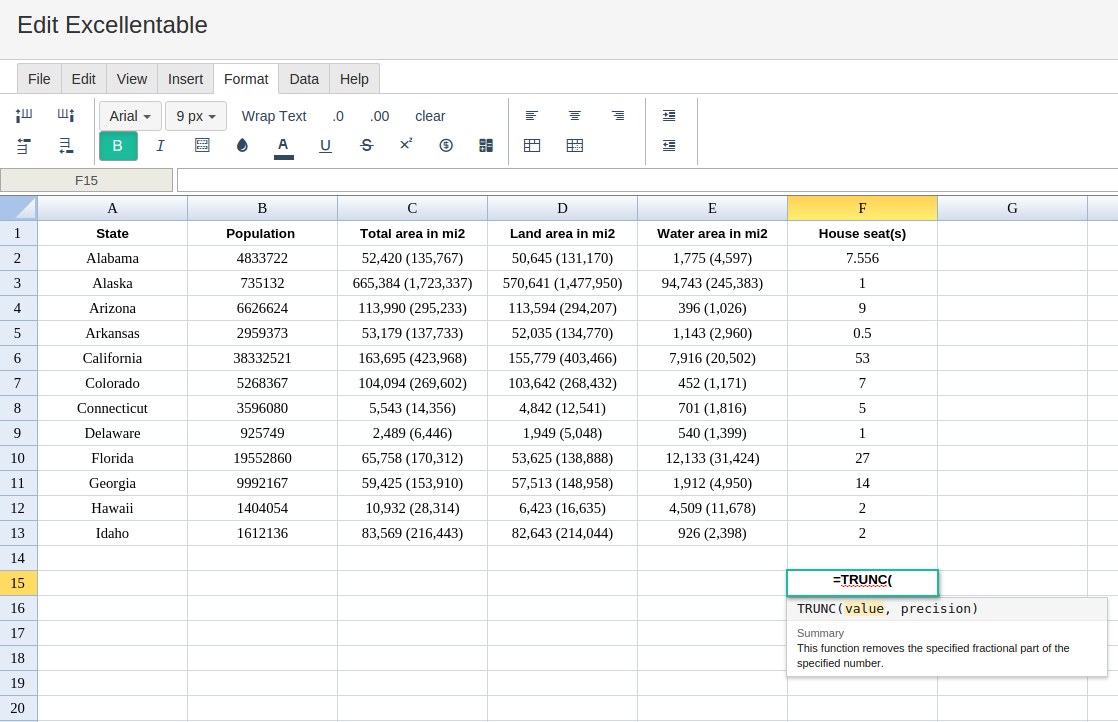
Then begin typing the TRUNC formula in the area you would like to display the outcome:
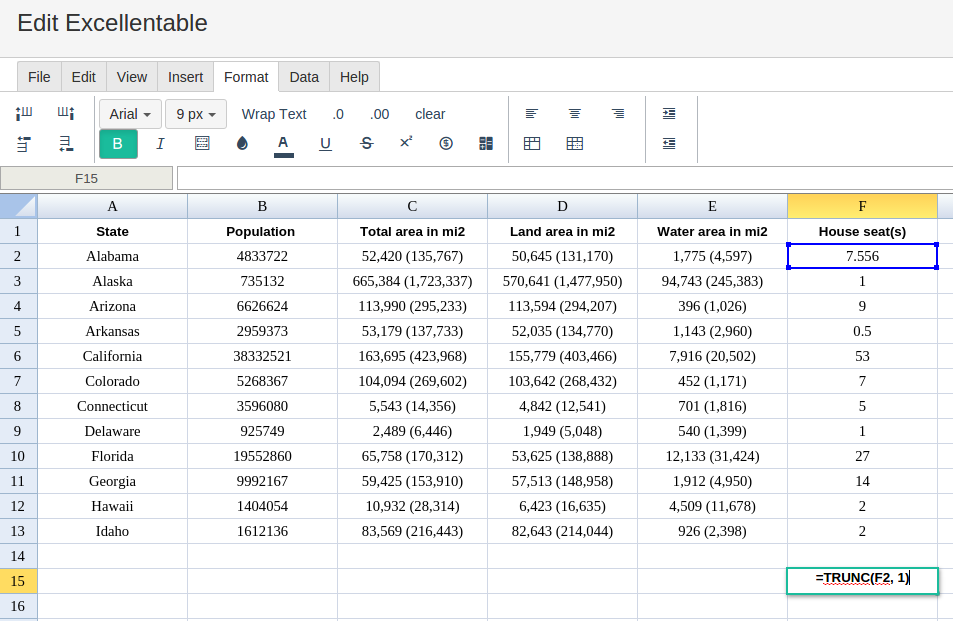
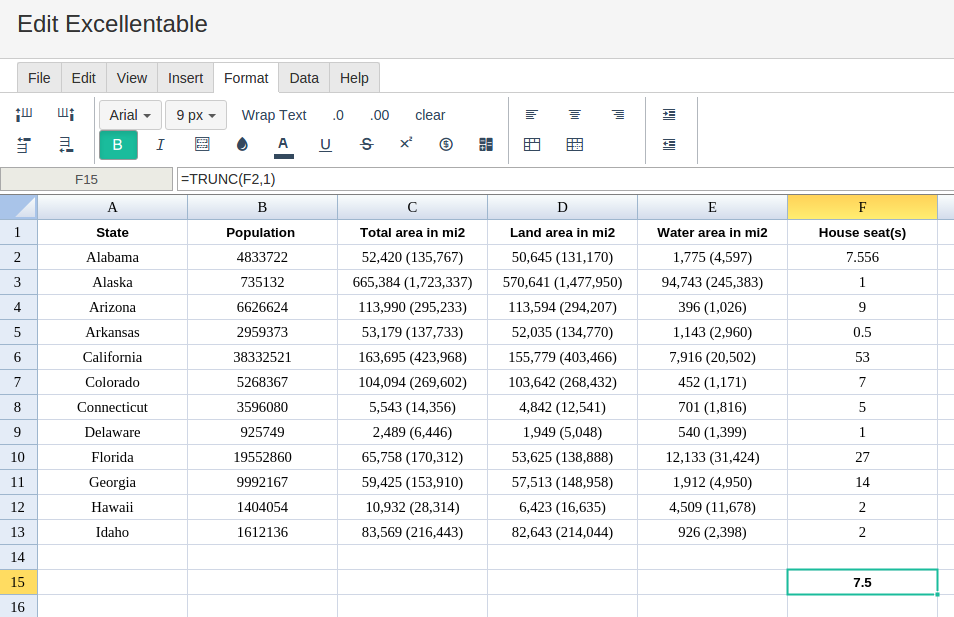
By adding the values you would like to calculate, Excellentable generates the outcome:
There were errors rendering macro:
- An unknown error occurred.